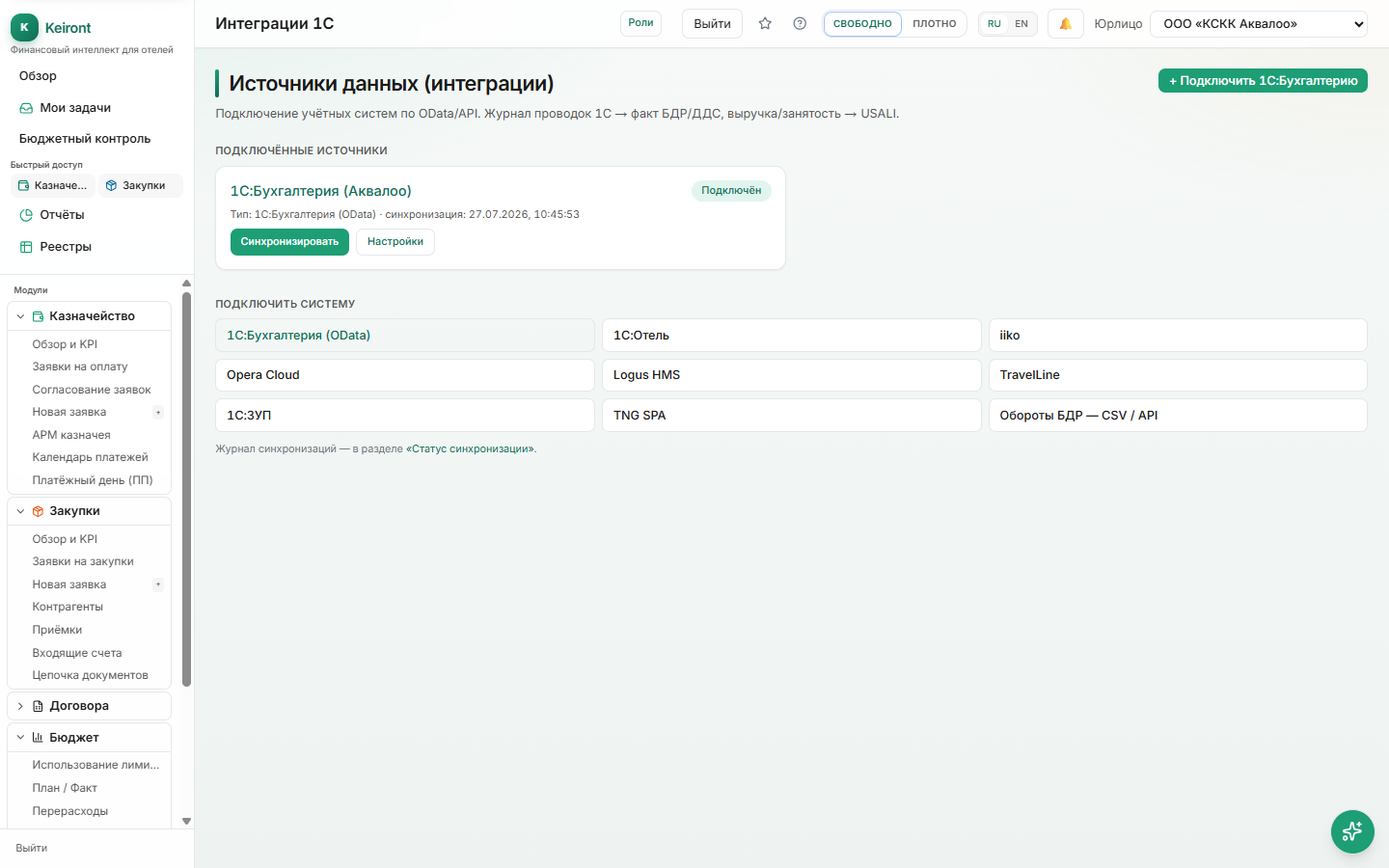
What Integration Gives You
After 1C is connected, turnovers, balances, and nomenclature load automatically—no more Excel uploads.
The "Integrations" section is available on Pro and Enterprise plans.
How to Connect
You'll need the OData service URL for 1C, login, password, and register name.
- Open "Settings → Integrations → Connect 1C:Accounting".
- Enter the OData service URL, login, password, and register name.
- Click "Test Connection"—the system will make a real request to your 1C.
- If the test passes, click "Sync".
If Connection Fails
Make sure your 1C has the OData service published (on IIS/Apache web server) and the user has read rights to the register.
A typical HTTP 500 error is a 1C/web server issue, not Keiront. Your 1C admin fixes it by checking publication, user rights, and standard OData interface.
Account Mapping and Actual in Reports
After connecting, load the chart of accounts from 1C and set up mapping: which 1C account maps to which USALI line and with what sign (income +/expense −). The system suggests auto-mapping for revenue and expense accounts—you review and save.
Once mapping is saved and journal entries are loaded, actual amounts from revenue/expense accounts appear in the USALI P&L report. Rules for balance-sheet accounts (cash, bank, inventory, payables) are saved and used in the Cash Flow Statement and balance stages.
What is not production-ready yet
In Integrations nav, the working path is 1C:Accounting (OData) + hub; PMS / 1C:Hotel / Payroll / iiko / Opera / Logus / TravelLine / TNG are under a «Coming soon» section with a badge (config UI ≠ production ETL).
Those setup screens stay reachable by URL but do not mean out-of-the-box data exchange without a separate project.